Chapter 27 — Integrating Panorama with Prisma Access
After activating the license, a Panorama-managed deployment requires a one-time integration process to link the Panorama instance to the Prisma Access tenant. This is done through a One-Time Password (OTP) and the Cloud Services plugin.
Integration Sequence
flowchart TD
    S1["Step 1<br/>Generate OTP<br/>in Common Services portal"]
    S2["Step 2<br/>Install Cloud Services plugin<br/>on Panorama"]
    S3["Step 3<br/>Retrieve Prisma Access<br/>licenses on Panorama"]
    S4["Step 5<br/>Verify account<br/>(paste OTP)"]
    S5["Step 6<br/>Apply device group<br/>changes"]

    S1 --> S2 --> S3 --> S4 --> S5
Step 1 — Generate the One-Time Password (OTP)
Navigation (Common Services portal):
Common Services > Tenant Management > [Tenant Name] > Generate OTP for setting up Panorama
- The OTP expires — copy it immediately and use it in Step 5 without delay
- The OTP links this specific Panorama instance to the tenant
Step 2 — Install the Cloud Services Plugin
Navigation:
Panorama > Plugins > Check Now
- Click Check Now to display available Cloud Services plugin versions
- Download the latest compatible version
- Install the plugin — Panorama will prompt for a commit after installation
📷 PaloAlto screenshot — Panorama Plugins — Cloud Services plugin installation
The Cloud Services plugin adds the Panorama > Cloud Services menu, which is the primary interface for all Prisma Access configuration in Panorama-managed deployments.
Step 3 — Retrieve Prisma Access Licenses
Navigation:
Panorama > Licenses > Retrieve license keys from license server
- Panorama contacts the Palo Alto license server and downloads all licenses associated with the tenant
- Verify that licenses appear for each Prisma Access component you plan to use:
- Mobile Users (GlobalProtect)
- Remote Networks
- Service Connections
- ZTNA Connector (if purchased)
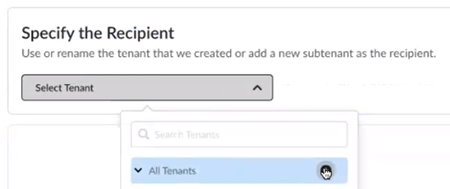
Step 5 — Verify the Account (Paste OTP)
Navigation:
Panorama > Cloud Services > Configuration > Verify
- If Verify is greyed out, check that DNS and NTP are configured under
Panorama > Setup > Services - Paste the OTP copied in Step 1 and click OK
This step completes the trust relationship between Panorama and the Prisma Access tenant.
Step 6 — Apply Device Group Changes
Navigation:
Panorama > Cloud Services > Configuration > Service Setup > Settings
Verify and confirm:
| Field | Required Value |
|---|---|
| Device Group Name | Service_Conn_Device_Group |
| Parent Device Group | Shared |
- Click OK to save
- This ensures Prisma Access service configuration inherits the correct device group hierarchy
📷 PaloAlto screenshot — Service Setup device group configuration
Result: Cloud Services Menu Structure
After successful integration, the Panorama > Cloud Services menu provides access to:
| Menu Item | Purpose |
|---|---|
| Configuration > Service Setup | Infrastructure subnet, BGP AS, DNS, logging, advanced routing |
| Configuration > Service Connection | IPSec tunnels to corporate DCs |
| Configuration > Remote Networks | Branch IPSec onboarding |
| Configuration > Mobile Users | GlobalProtect and Explicit Proxy config |
| Configuration > ZTNA Connector | Connector Groups and targets |
| Status | Tunnel health, logging service status |
Key Takeaways
- OTP links a specific Panorama instance to the Prisma Access tenant — generate it immediately before use
- Cloud Services plugin install adds the full
Cloud Servicesmenu to Panorama - If the Verify button is disabled, the root cause is always missing DNS or NTP on Panorama
- Device group must be set to
Service_Conn_Device_Groupwith parentSharedbefore proceeding to infrastructure configuration
Previous: Chapter 26 — Prisma Access Activation Planning Checklist · Next: Chapter 28 — Configuring the Service Infrastructure