Chapter 26 — Prisma Access Activation Planning Checklist
Before touching the activation portal, confirm every item on this checklist. Incomplete preparation at this stage leads to activation failures, re-work, or Panorama HA complications.
Pre-Activation Checklist
Licensing & Account
| # | Item | Notes |
|---|---|---|
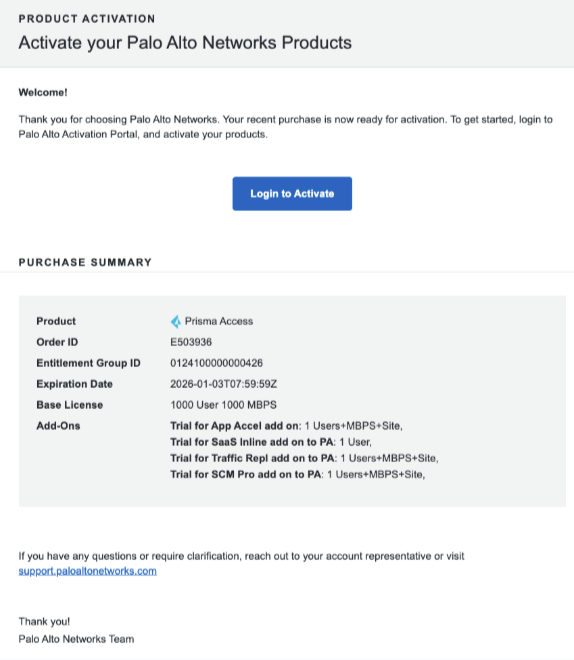
| 1 | Activation email received from Palo Alto Networks | Contains the "Activate Subscription" link |
| 2 | Customer Support Portal (CSP) account created | Required to claim the license and manage the tenant |
| 3 | Management platform decision made | Strata Cloud Manager (recommended for new deployments) or Panorama |
Panorama Prerequisites (Panorama-managed only)
| # | Item | Notes |
|---|---|---|
| 4 | Panorama is running the minimum supported version for the Cloud Services plugin | Check PaloAlto compatibility matrix |
| 5 | DNS server configured on Panorama | Panorama > Setup > Services — required for Cloud Services plugin Verify step |
| 6 | NTP server configured on Panorama | Panorama > Setup > Services |
| 7 | Panorama HA configured (if planned) | Recommended to configure HA before activation — simpler than doing it after |
Tenant & Infrastructure Planning
| # | Item | Notes |
|---|---|---|
| 8 | Tenant name and log storage region selected | Choose the region nearest to where log data should reside (Strata Logging Service) |
| 9 | Panorama serial number available | Required to link the Panorama instance to the Prisma Access tenant |
| 10 | Infrastructure subnet planned | /24 minimum, RFC 1918, no overlap with corporate or user subnets (see Chapter 7) |
Activation Steps (Panorama-managed)
flowchart TD
    S1["Step 1<br/>Click Activate Subscription<br/>link in license email"]
    S2["Step 2<br/>Log in to<br/>PaloAlto CSP account"]
    S3["Step 3<br/>Select products<br/>to activate → Start Activation"]
    S4["Step 4<br/>Choose CSP account<br/>to claim license"]
    S5["Step 5<br/>Select Panorama<br/>as management method"]
    S6["Step 6-7<br/>Allocate to Tenant<br/>Select log region"]
    S7["Step 8<br/>Create New Panorama<br/>and copy Serial Number"]
    S8["Step 9-11<br/>Confirm add-ons<br/>Accept T&C → Activate Now"]

    S1 --> S2 --> S3 --> S4 --> S5 --> S6 --> S7 --> S8
Step 6 — Allocate to Tenant: - Click + to create a new tenant if one does not yet exist - Tenant is the administrative boundary for your Prisma Access deployment
Step 7 — Log Region (Strata Logging Service): - Select the region nearest to where log data should be stored - This determines which Strata Logging Service instance receives your traffic logs - Cannot be changed after activation without a full re-onboarding
Step 8 — Panorama Serial Number: - Select Create New from the Panorama drop-down - Copy the displayed Panorama Serial Number — needed when registering the Panorama appliance
Steps 9–11: - Add-ons are pre-enabled based on your contract — review before proceeding - Accept the Terms and Conditions - Click Activate Now
📷 PaloAlto screenshot — Prisma Access activation portal steps
Activation Steps (Strata Cloud Manager)
When using SCM, the activation process is simplified:
- Receive activation email → click the link
- Log in to (or create) your Palo Alto Networks account
- Claim the license and create your SCM tenant
- Select log region for Strata Logging Service
- SCM is accessible immediately at
stratacloudmanager.paloaltonetworks.com
No Panorama serial number or Cloud Services plugin installation is required for SCM-managed deployments.
Key Takeaways
- Prepare DNS, NTP, and Panorama HA before activation to avoid post-activation rework
- Choose management platform (SCM or Panorama) before activating — the activation flow differs
- Log region selection is permanent — choose the region that satisfies data residency requirements
- The Panorama serial number generated during activation links your physical/virtual Panorama to the tenant
Previous: Chapter 25 — Onboard ZTNA Connector in VMware ESXi & Upgrade · Next: Chapter 27 — Integrating Panorama with Prisma Access