Chapter 25 — Onboard ZTNA Connector in VMware ESXi & Upgrade
This chapter covers the full ESXi deployment procedure — from OVA download to tunnel verification — and explains how to upgrade Connector software.
ESXi Deployment Overview
The Connector VM is deployed using a standard VMware OVF/OVA workflow. Two interfaces are configured: - Port 1 (WAN) — internet-facing, for IPSec connectivity to Prisma Access - Port 2 (App) — data-centre-facing, for connectivity to private app servers
flowchart TD
    DL["Step 1<br/>Download OVA from CSP"]
    DEPLOY["Steps 2–7<br/>Deploy OVF Template<br/>in vCenter"]
    NET["Step 8<br/>Configure network<br/>interface mappings"]
    LIC["Step 10<br/>Enter Key & Secret<br/>Configure Port 1 & Port 2"]
    FINISH["Step 11<br/>Review & Finish"]
    VERIFY["Steps 12–14<br/>Power on & confirm boot<br/>Verify Tunnel Up in Portal"]

    DL --> DEPLOY --> NET --> LIC --> FINISH --> VERIFY
Step 1 — Download the OVA
Source: Customer Support Portal (CSP) — cloud marketplace images (AWS/Azure/GCP) are also available as an alternative for cloud-hosted deployments, but ESXi deployment uses the CSP OVA.
Updates > Software Updates > Prisma Access ZTNA Connector for VMware
Download the .ova file to a location accessible from vCenter — choose the 1-nic (one-arm) or 2-nic (two-arm) image variant matching the topology decided for this deployment.
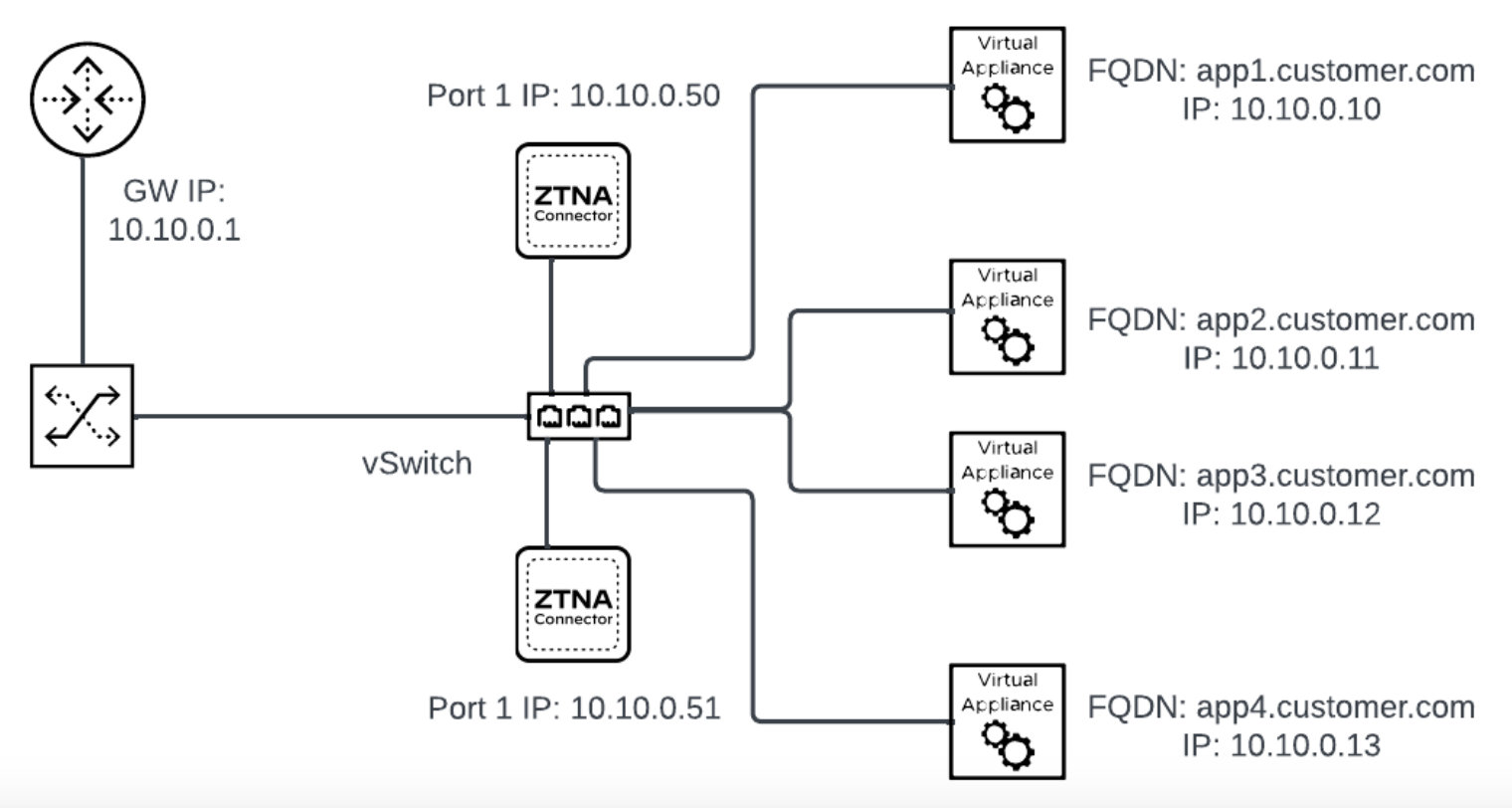
Steps 2–7 — Deploy OVF Template in vCenter
- Open VMware vCenter, right-click the target host → Deploy OVF Template
- Select the OVA location (URL or local file) → Next
- Enter a VM name and select a datacenter location → Next
- Select the compute resource (host or cluster) → Next
- Review the OVA details → Next
- Select storage: disk format = Thick Provision Lazy Zeroed, datastore = target datastore → Next
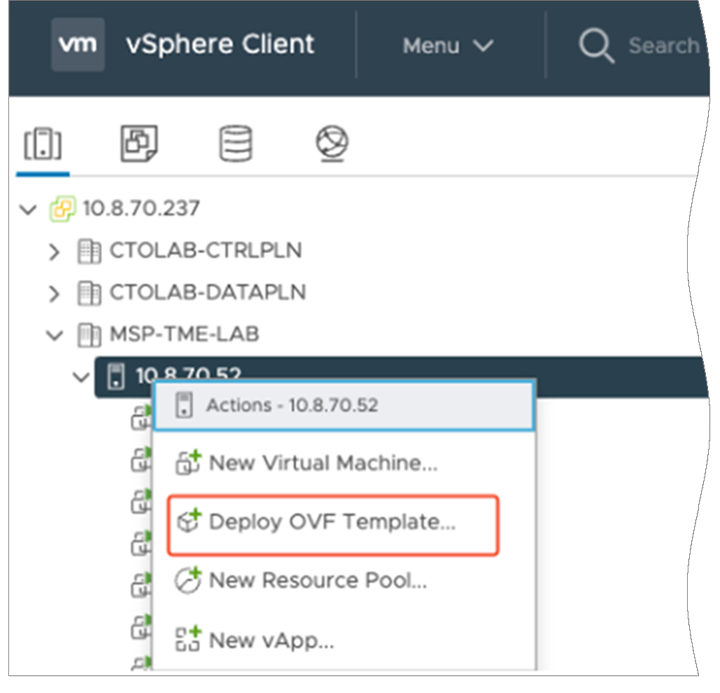
Step 8 — Configure Network Interface Mappings
Map the OVA's virtual network adapters to the correct port groups:
| OVA Interface | Port Group | Role |
|---|---|---|
| Port 1 | WAN-facing port group | IPSec to Prisma Access; outbound internet access |
| Port 2 | App-facing port group | Access to private app servers in DC |
📷 PaloAlto screenshot — Network interface mapping in OVF wizard
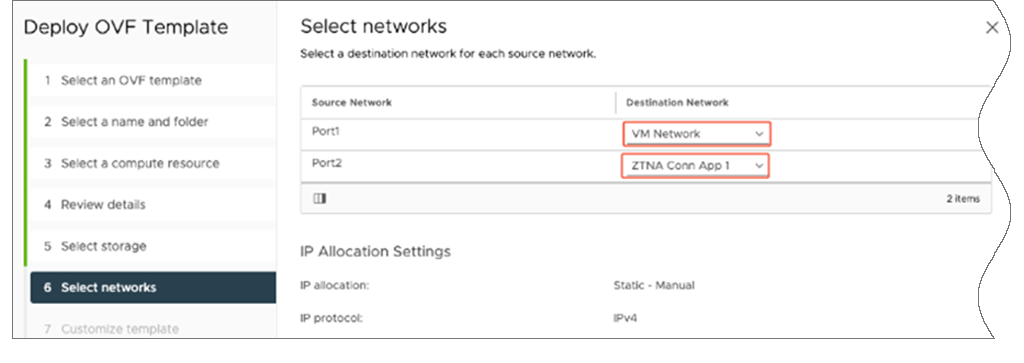
Step 10 — Additional Settings (Licensing + Interface Config)
In the Customize template / Additional Settings screen:
Licensing: - Enter the Key and Secret retrieved from the Prisma SASE Portal in Step 4 of Chapter 24
Port 1 (WAN Interface):
| Field | Value |
|---|---|
| Role | Public WAN |
| Port Config | DHCP or Static |
| Static IP | IP address, subnet mask, default gateway (if Static) |
| DNS | At least one public DNS server |
Port 2 (App Interface):
| Field | Value |
|---|---|
| Role | Private WAN |
| Port Config | DHCP or Static |
| Static IP | IP address, subnet mask (if Static) |
| DNS | Private DNS server for app FQDN resolution |
⚠️ For on-premises deployments, set the time zone to UTC — cloud deployments handle this automatically.
📷 PaloAlto screenshot — Additional settings: licensing and interface config
Steps 11–13 — Finish and Confirm VM Boot
- Review the configuration summary → Finish (Step 11)
- After the OVA deploys, power on the VM (Step 12)
- Confirm the VM is running in vCenter — check the console for boot completion (Step 13)
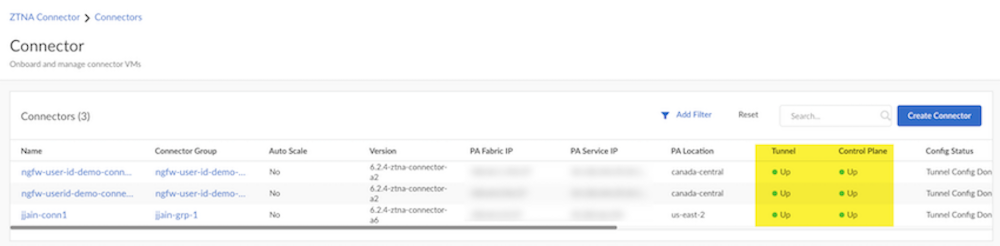
Step 14 — Verify Tunnel Status in the Portal
Settings > ZTNA Connector > Connectors
The Connector registered with the Key and Secret should appear. Confirm status = Tunnel Up.
If the status remains Tunnel Down:
- Check that TCP 443 egress to *.cgnx.net is permitted
- Check UDP 500/4500 egress to Prisma Access is permitted
- Confirm the Key and Secret match the Connector created in the portal
- Confirm DNS resolves locator.cgnx.net from the Connector VM
📷 PaloAlto screenshot — Connector tunnel status verification
Upgrading ZTNA Connector
Upgrades are managed at the Connector Group level, not per individual Connector.
Navigation:
Settings > ZTNA Connector > Connector Groups
Click the green arrow (upgrade icon) next to the Connector Group.
Two scheduling options:
| Option | Behaviour |
|---|---|
| Install Now | Upgrades all Connectors in the group immediately |
| Schedule | Provide a date and time for the upgrade window |
Notes: - A scheduled upgrade can be cancelled up to 5 minutes before it begins - Schedule upgrades during a planned maintenance window or network outage - All Connectors in a group upgrade together — mixed-version groups are not supported
Key Takeaways
- ESXi deployment: download OVA from CSP → Deploy OVF Template → map Port 1 (WAN) and Port 2 (App) → enter Key & Secret → power on → verify Tunnel Up
- Disk format must be Thick Provision Lazy Zeroed for ESXi
- Key and Secret from the SASE Portal authenticate the VM — double-check these if Tunnel Down persists
- On-premises time zone must be set to UTC
- Upgrades are group-level, not per-Connector; cancel is possible up to 5 minutes before the scheduled time
Previous: Chapter 24 — Enable & Configure ZTNA Connector · Next: Chapter 26 — Prisma Access Activation Planning Checklist