Chapter 12 — Merging Branches
Once parallel work on separate branches is complete, the changes need to be combined. Merging is Git's primary mechanism for integrating one branch's history into another. This chapter covers the two merge strategies Git uses, how to run a merge, how to resolve conflicts, and the options that control how merge history is recorded.
The Starting Point: Diverged Branches
Merging makes sense when two branches have diverged from a common point. In the diagram below, feature1 and feature2 both branch off from an earlier commit on main.
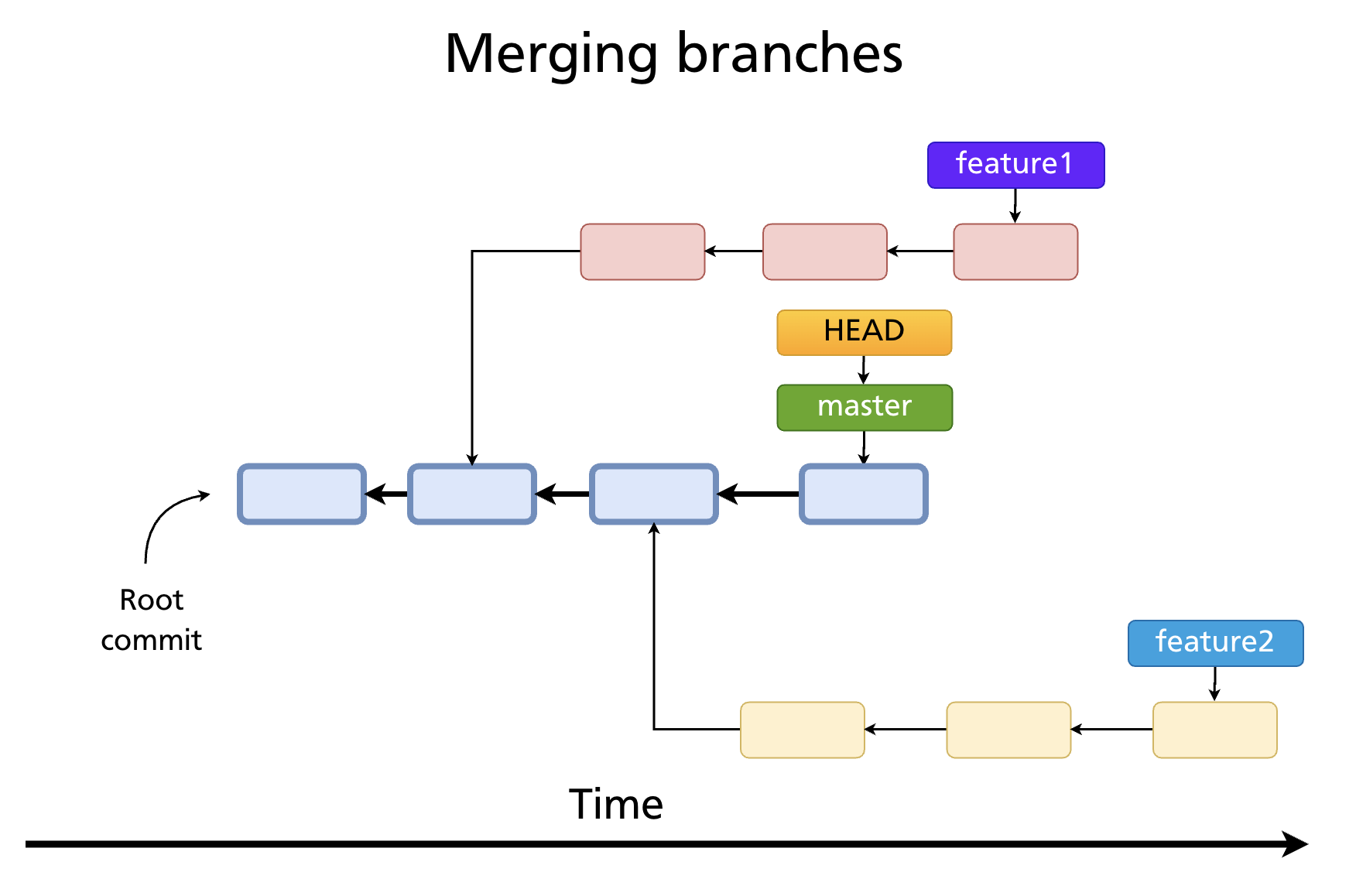
The goal is to bring the work from a feature branch back into main (the receiving branch).
The Merge Process
The standard four-step workflow:
- Create a feature branch from
main - Make commits on the feature branch
- Check out
main(the branch that will receive the changes) - Run
git merge <feature-branch>
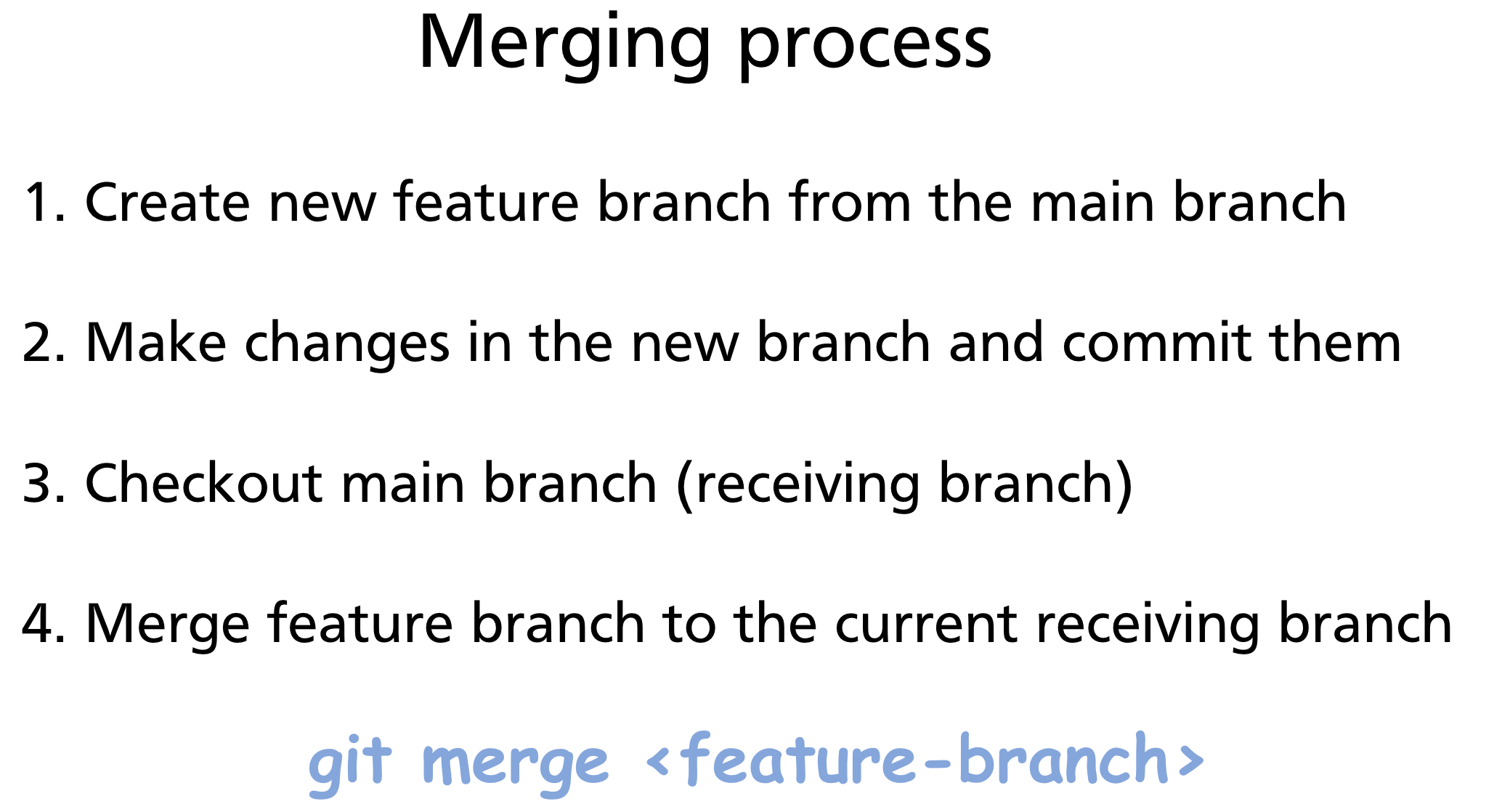
Git automatically chooses between two strategies based on the history.
Fast-Forward Merge
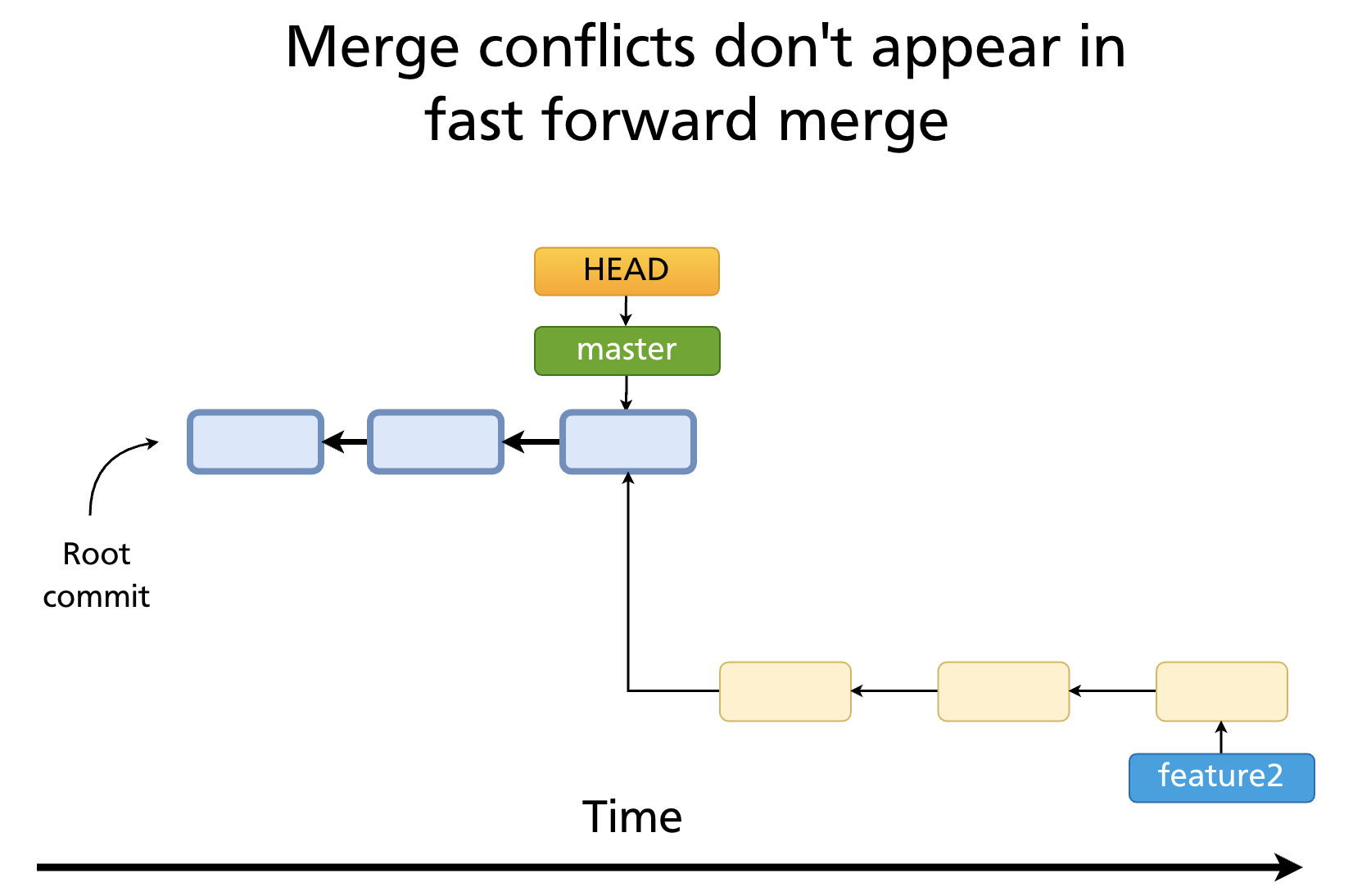
A fast-forward merge happens when the receiving branch has not diverged from the feature branch — that is, every commit on main is also an ancestor of the feature branch tip. In this case, Git simply moves the main pointer forward to the tip of the feature branch.
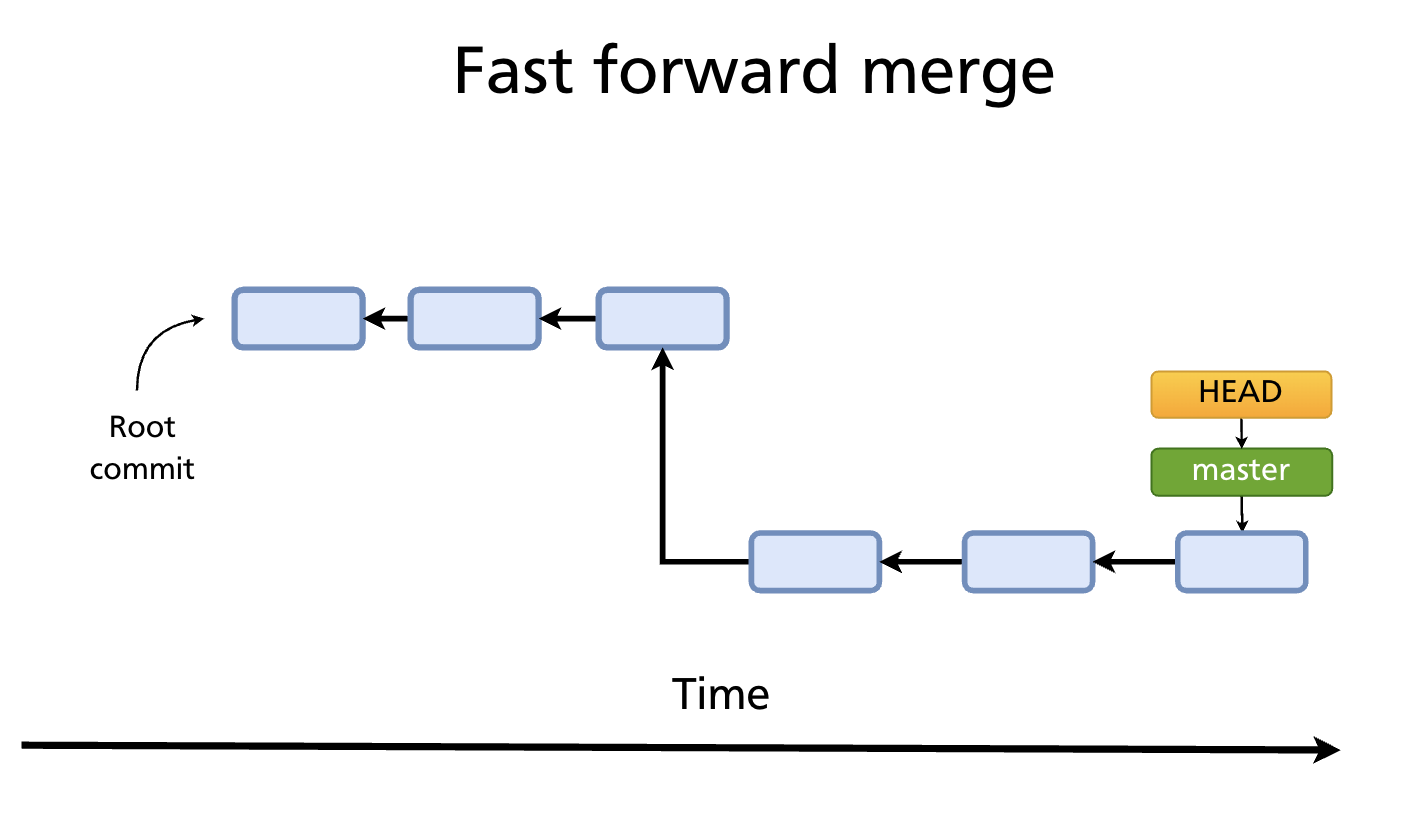
No merge commit is created. The history is perfectly linear.
git switch main
git merge feature2
# Updating 7b4c91e..a3f8c21
# Fast-forward
# src/feature.js | 24 ++++++++++++++++++++++++
# 1 file changed, 24 insertions(+)
Preventing a fast-forward
Sometimes you want to preserve the fact that a branch existed, even when a fast-forward is possible. Use --no-ff:
This forces Git to create a merge commit, keeping the feature branch visible in the history graph. Many teams require this for all feature branches to make the history easier to audit.
3-Way Merge
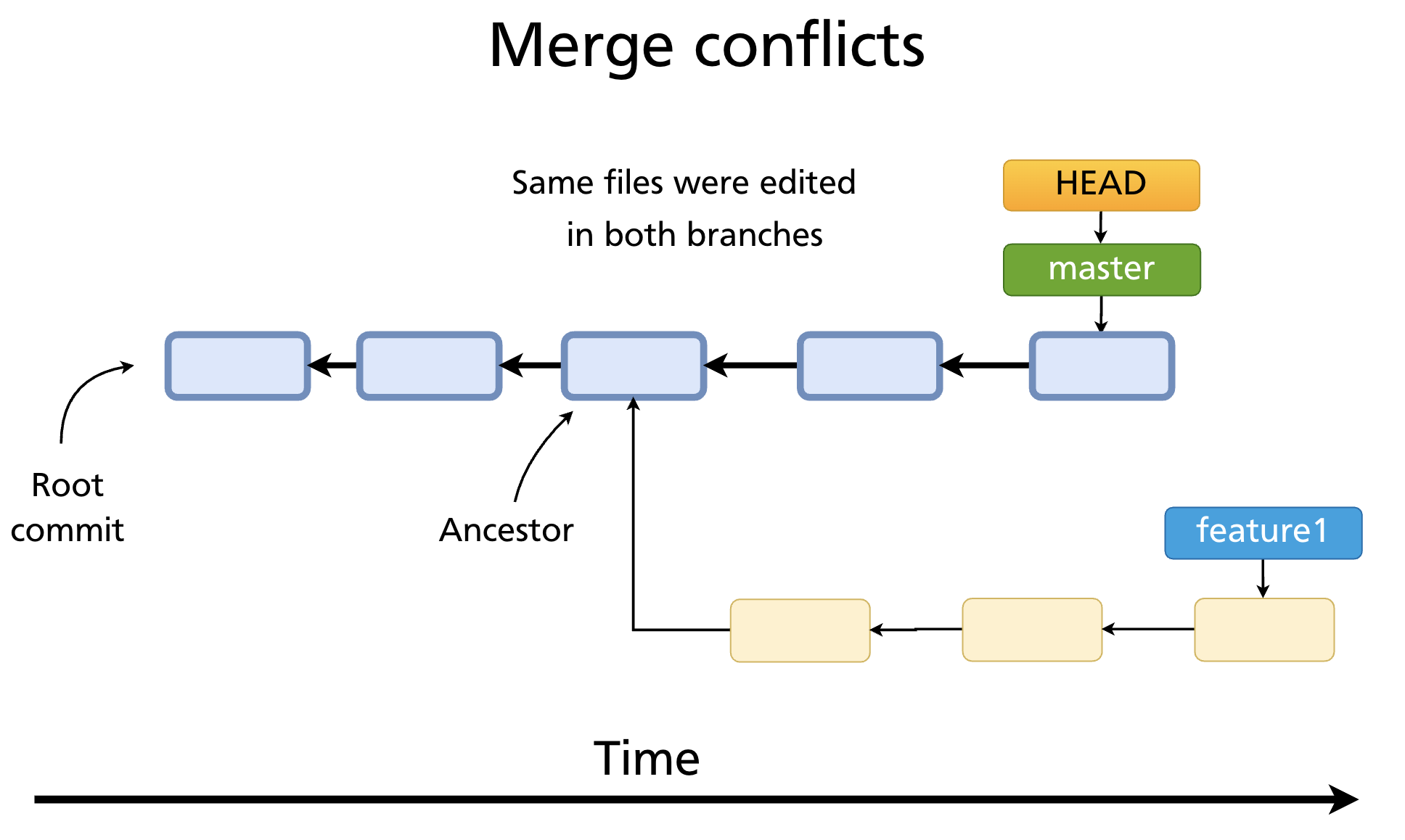
A 3-way merge happens when both branches have diverged — main has new commits that the feature branch does not, and vice versa. Git cannot simply move a pointer; it must reconcile two different lines of history.
Git finds the common ancestor — the last commit that both branches share — and compares it against the tips of both branches. Using these three snapshots (ancestor, branch A tip, branch B tip — hence "3-way"), Git computes a combined result.
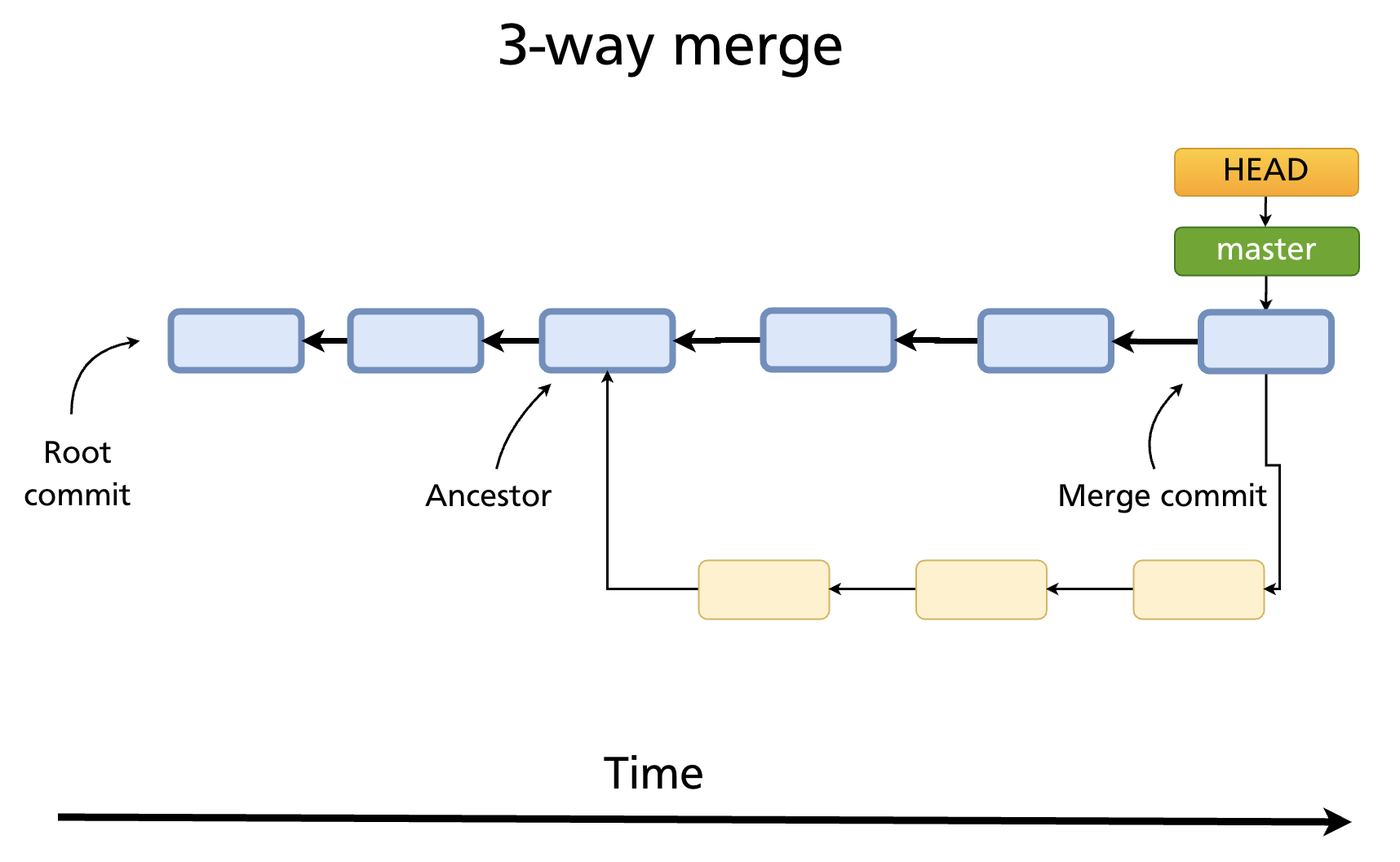
The result is a merge commit with two parents:
git switch main
git merge feature1
# Merge made by the 'ort' strategy.
# src/auth.js | 15 +++++++++++++++
# 1 file changed, 15 insertions(+)
The merge commit appears in git log with two parent SHAs and a message like Merge branch 'feature1'.
Merge Conflicts
A merge conflict occurs when the same region of the same file was modified differently on both branches since the common ancestor. Git cannot automatically decide which version to keep.
Fast-forward merges cannot produce conflicts. Because a fast-forward simply advances a pointer — there is no parallel editing — there is nothing to reconcile.
What happens when a conflict occurs
git merge feature1
# Auto-merging src/auth.js
# CONFLICT (content): Merge conflict in src/auth.js
# Automatic merge failed; fix conflicts and then commit the result.
Git pauses the merge and marks conflicting files. git status shows them:
git status
# On branch main
# You have unmerged paths.
#
# Unmerged paths:
#   (use "git add <file>..." to mark resolution)
#         both modified:   src/auth.js
Conflict markers
Inside the conflicted file, Git inserts markers:
<<<<<<< HEAD
function login(user) {
  return authenticate(user, 'session');
}
=======
function login(user, token) {
  return authenticate(user, token);
}
>>>>>>> feature1
| Section | Meaning |
|---|---|
<<<<<<< HEAD to ======= |
The version from the receiving branch (main) |
======= to >>>>>>> feature1 |
The version from the incoming branch (feature1) |
Resolving conflicts
- Open each conflicted file and edit it to the correct final state — remove the markers and combine the content as appropriate.
- Stage the resolved file:
- Repeat for every conflicted file, then complete the merge:
Using a merge tool
Opens the configured diff/merge tool (e.g. VS Code, vimdiff, meld) for each conflicted file, presenting a three-panel view: ours, base (ancestor), and theirs.
Configure VS Code as the merge tool:
git config --global merge.tool vscode
git config --global mergetool.vscode.cmd 'code --wait $MERGED'
Aborting a merge
If you want to abandon the merge entirely and return to the pre-merge state:
This is safe to run at any point before the final git commit.
Further reading: Basic Merging — Pro Git book
Merge Options
--squash — collapse branch commits into one
Collects all commits from the feature branch into a single staged change on the receiving branch. Useful for keeping main's history clean when the feature branch has many small, messy commits. Note: this does not create a merge commit — the relationship between the branches is not recorded in history.
--no-commit — stage the merge without committing
Pauses after the merge is prepared so you can review or adjust the combined result before it is committed.
Viewing Merge History
git log --merges              # show only merge commits
git log --no-merges           # exclude merge commits
git log --oneline --graph     # visualise the branch and merge structure
Summary
- Fast-forward merge: receiving branch has not diverged; Git moves the pointer forward. No merge commit, no conflicts possible.
- 3-way merge: both branches have diverged; Git creates a merge commit with two parents using the common ancestor as a base.
- Merge conflicts occur when the same region of a file was changed in both branches; resolve by editing conflict markers, staging, and committing.
git merge --abortabandons an in-progress conflicted merge.--no-ffforces a merge commit even when a fast-forward is possible.--squashcollapses branch commits into one staged change without recording the branch relationship.
Previous: Chapter 11 — Branches and HEAD · Next: Chapter 13 — Rebasing